Incoming Wires
Last updated: May 18, 2026
Incoming Wires Overview
Incoming foreign currency wires can be received and held in virtual accounts. If you do not see any virtual accounts listed under the "Accounts" Menu please follow the directions below under "Enable Virtual Account" option to request access from your bank.
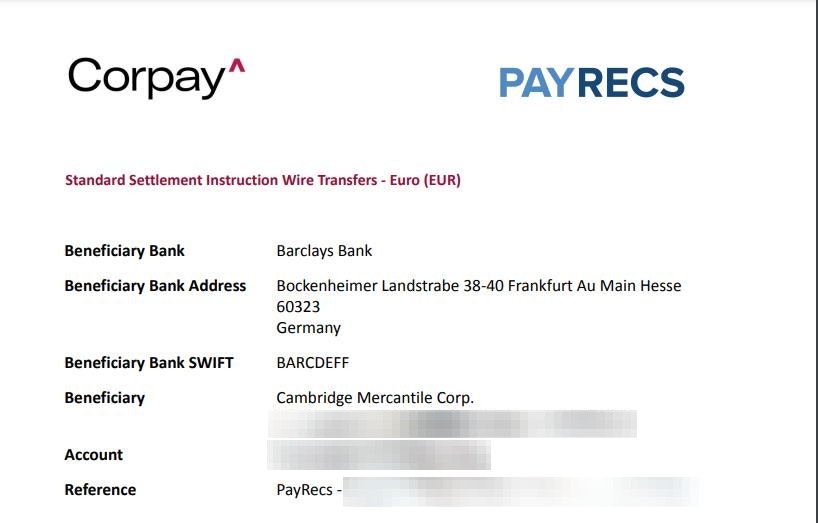
Once enabled, you will be provided with wire instructions for that account (see screenshot example).
Warning:
❗IMPORTANT! The reference line on the wire instructions is critical to include on the wire for accurate and timely delivery.❗
Once an incoming wire has been transferred into the virtual account, you will be notified via email, and you will be able to:
Use those funds to send to a recipient that you've created in PayRecs
Convert them to USD and send them to your own account under your bank. (See Convert to USD option below)
Virtual Accounts
Convert to USD
In order to convert foreign currency to USD and send to yourself, you'll need the following requirements:
Currency in an enabled virtual account
A PayRecs Recipient(see screenshot)
Currency set to USD
Bank & Beneficiary Country set to US
Contains your banking details
Tip:
See "Create a Recipient" link below for a guide on creating recipients, but please ensure the requirements above are selected when creating the recipient.
Once you have a recipient setup for your account you'll be able to convert the foreign currency to USD and send it to your account.
Select the "Outbound Payment" button next to the desired virtual account under the "Accounts" menu.
Search for the internal recipient created for your account and initiate the wire to that account. OR Create a new one if it doesn't exist.
Ensure the Bank & Recipient country are US. Currency is USD
additionally the Bank Account and Swift information should contain your account number at your Financial Institution
Auto Convert to USD
Incoming wires can be automatically converted into USD and sent directly to an account of your choice at your bank. This requires a bank administrator to set the destination account, please request your account representative at your bank to set this account.
Set Auto Conversion Account
Bank administrators can edit the company to set an Auto Conversion account.
Login to the partner portal and navigate to the Companies menu.
Select the desired company
Select the Accounts sub-menu
Select the Multi Currency Accounts sub-menu
Identify the desired Multi Currency Account. Depending on its current state it could be under Visible or Hidden.
Hover over the 3 vertical dots to the right of the MCA and select Change incoming USD account
Select the desired destination account for the incoming funds
Do not convert - Sets the MCA as the destination account for the incoming funds.
Accounts with Blue badges are set from the Default Incoming Conversion Account at the top of the list. This applies to all MCAs under the company that have not been explicitly set otherwise.
Accounts with Green badges have been explicitly set to that destination account.
Manually Convert to USD
In order to convert foreign currency to USD and send to yourself, you'll need the following requirements:
Currency in an enabled virtual account
A PayRecs Recipient
Currency set to USD
Bank & Beneficiary Country set to US
Contains your banking details
See "Create a Recipient" link below for a guide on creating recipients, but please ensure the requirements above are selected when creating the recipient.
Once you have a recipient setup for your account you'll be able to convert the foreign currency to USD and send it to your account.
Select the "Outbound Payment" button next to the desired virtual account under the "Accounts" menu.
Search for the recipient created for your account and initiate the wire to that account. OR Create a new one if it doesn't exist.
Ensure the Bank & Recipient country are US. Currency is USD
additionally the Bank Account and Swift information should contain your account number at your Financial Institution