Adding a Subsidiary
Last updated: March 19, 2026
Please review the "Subsidiaries Overview" before adding a subsidiary. Understanding the use case of subsidiaries and onboarding them can help reduce delays in the onboarding process.
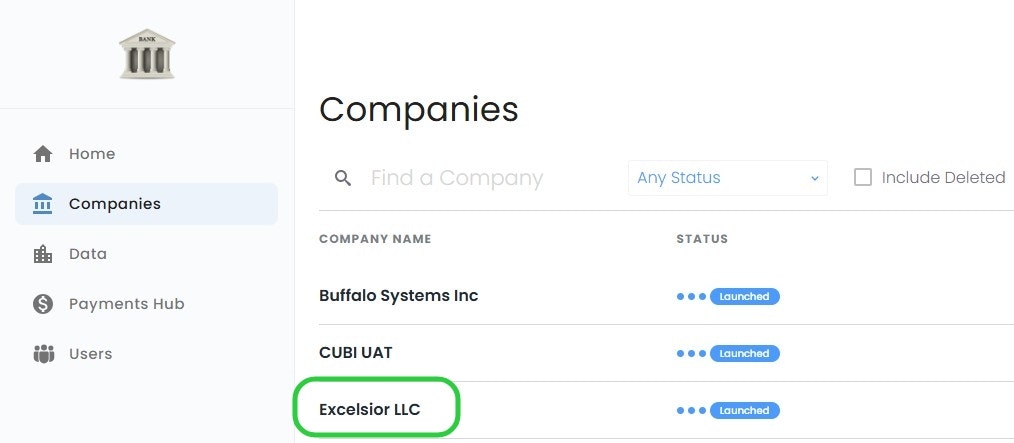
As an Admin/Partner User, login to PayRecs and navigate to the "Companies Menu"
Select the Name of the company you would like to add a subsidiary under
Add Subsidiary
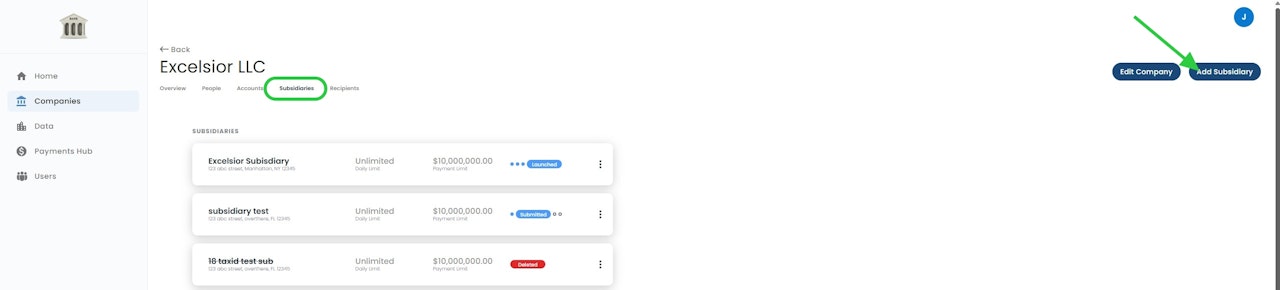
Select the Subsidiaries sub-menu
Select "Add Subsidiary" on the right side
Subsidiary Details
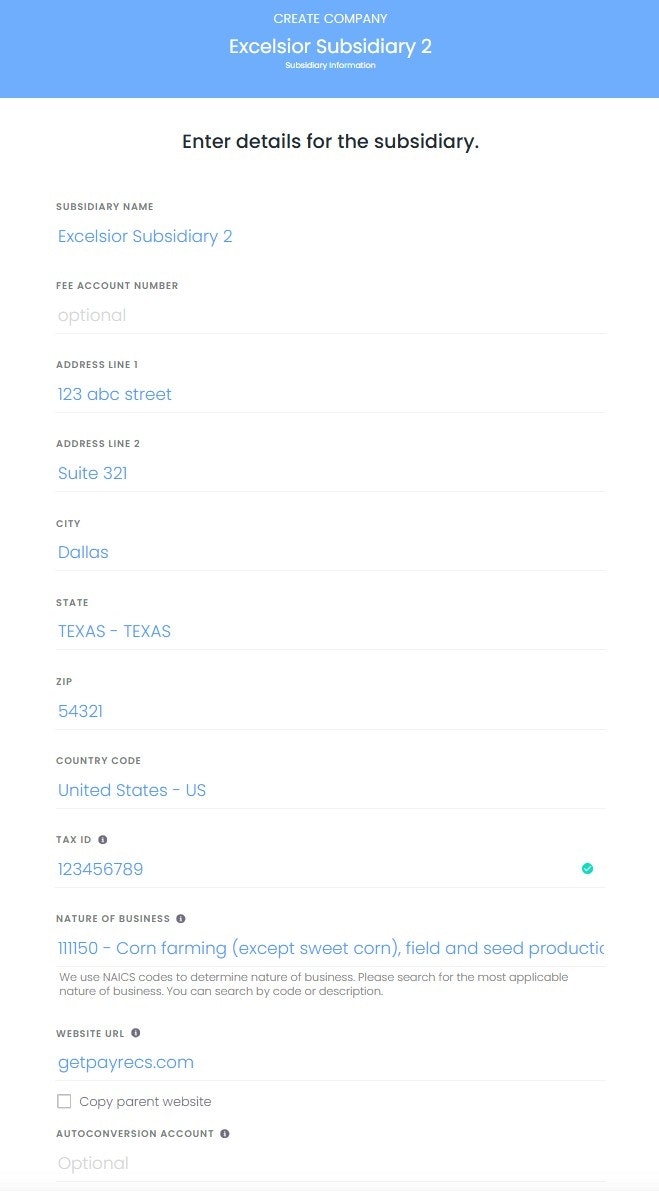
Fill in the legal name of the Subsidiary as well as its physical address.
Please fill in the required fields as accurately as possible to prevent any delays in the onboarding process.
Submit Subsidiary
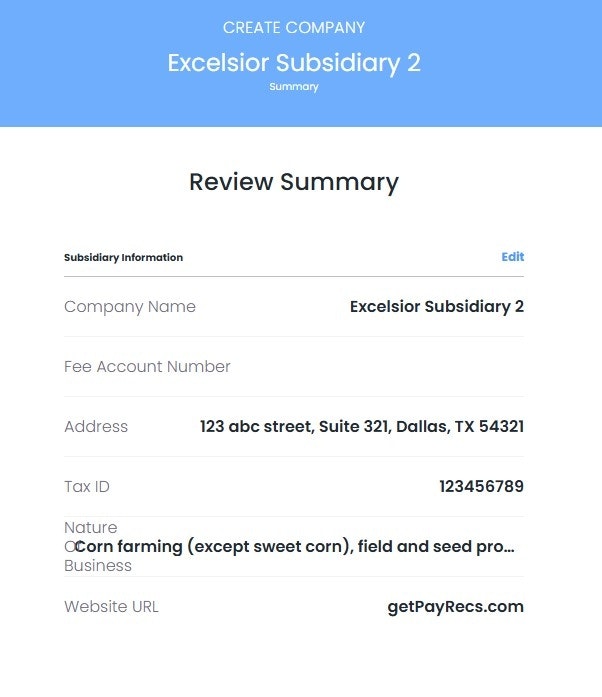
Review the information you input and select "Submit" at the bottom to submit the subsidiary,
Further review is required by our payment processor. We may request further information before the subsidiary is approved.
You will receive an email notification when the subsidiary is ready to launch.
Launch Subsidiary
When you have been notified that the Subsidiary is ready to launch. Locate the Subsidiary under the "Companies" menu.
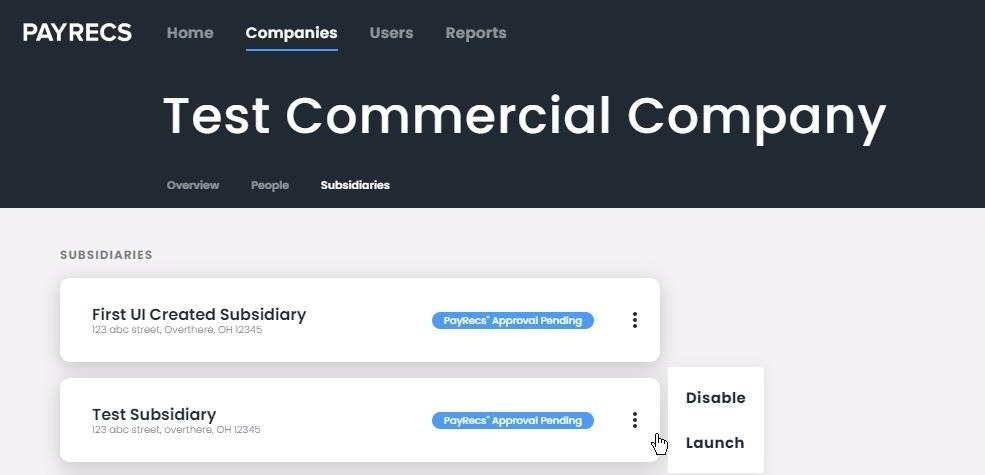
Hover your mouse over the 3 dots next to the desired Subsidiary and select "Launch".
The subsidiary is now ready to create payments.