Onboard New Company
Last updated: March 19, 2026
Requirements
To start the onboard process of a new company, confirm you have the following:
Partner/Admin User login in PayRecs
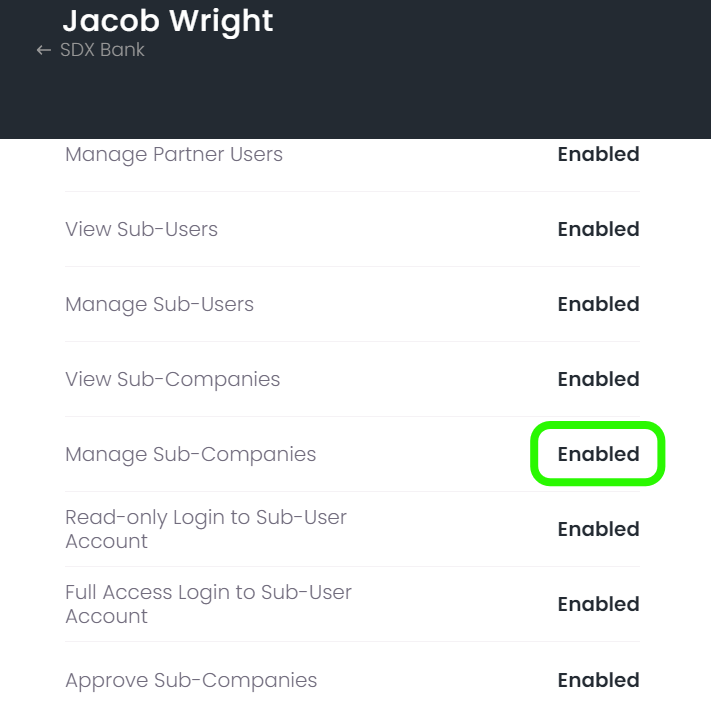
AND Manage Sub-Companies permission enabled
CustomerID, TaxID, or Name of the company from online banking
Add Company
Login to PayRecs as a Partner/Admin user with the Manage Sub-Company permission enabled.
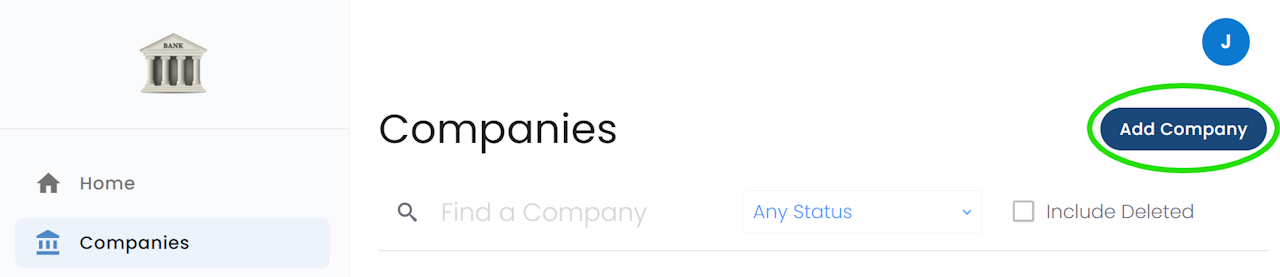
Navigate to the Companies menu.
Select "Add Company".
Search Company
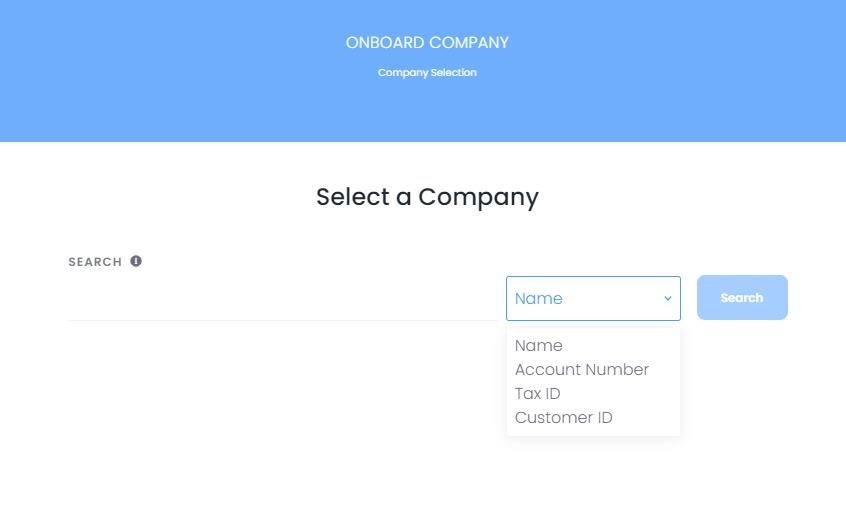
Input the CustomerID, TaxID, or Name to search for the company.
Confirm the Company Information is correct and click "Next".
Accounts
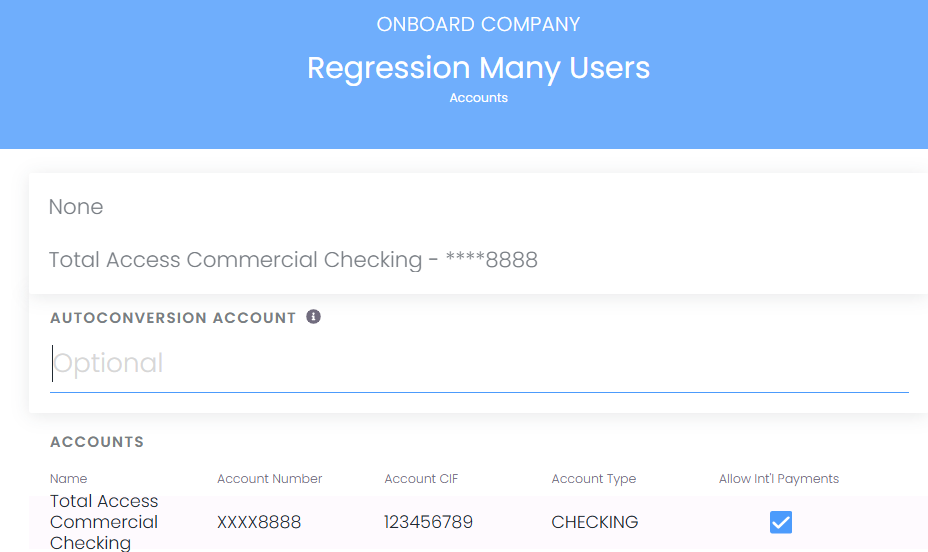
Enable any available accounts tied to this Company for international wires. Accounts not checked will not be available for use in PayRecs.
Accounts can be enabled/disabled at any time after onboarding by editing the company.
Autoconversion Account pertains to incoming FX wires. Any FX incoming wires for this client will be automatically converted to USD from the FX currency and received into the desired account. More information on Incoming Wires is linked below.
Additional Details
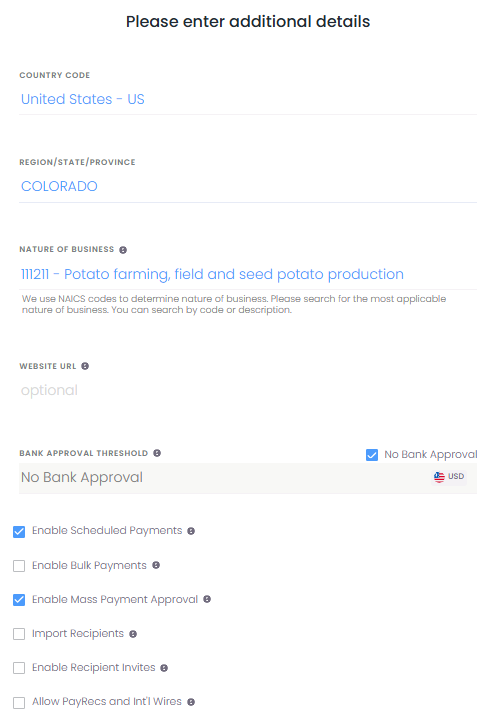
Country Code - Country in which the customer resides (Non-US customers may require additional information during the onboarding process. Our team will reach out if necessary)
Region/State/Province - Region in which the customer resides
Nature of Business - Accurate NAICS code is required for the onboarding review process.
Website URL - Customer's website, while optional, it can help prevent delays during the onboarding review process if additional information is requested from the reviewing team.
Bank Approval Threshold - If this threshold is set, the FI's back office will need to review and approve any wires sent by this customer that reach or exceed this threshold.
Enable Scheduled Payments - Grants this customer the ability to schedule payments for a future date
Enable Bulk Payments - Payments can be uploaded in bulk via a CSV file.
Enable Mass Payment Approval - Payments can be approved in bulk.
Import Recipients - Recipients in online banking that have been sent a wire in the past 18 months will be imported in a drafted state into PayRecs for the customer. Please encourage your client to carefully review the details of the recipient before sending a wire.
Enable Recipient Invites - This client can invite their recipient to input their own wire instructions in PayRecs.
Allow PayRecs and Int'l Wires - By default, International Wires in Q2 needs to be disabled in order for the client to log into PayRecs. Selecting this option will allow both entitlements to be used at the same time.
Some of these permissions can be enabled by default for companies that you are onboarding. Please submit a request to PayRecs support to enable defaults for these permissions.
Review Summary
Review the summary of the company you are about to submit.
Please note: Configurations including limits and permissions of the company and associated users can be configured before it's launched.
Users will NOT have access until the company has a "Launched" status on the home page.
Select "Submit" to submit this company for approval with our processor.
Company Status
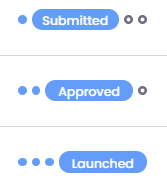
Now that your company has been Submitted, it is under review with our processor. In the mean time, feel free to make any configurations to limits or permissions for this company or any associated users.
Once the processor has reviewed and approved the company, the status will change to "Approved".
Users will not have access until the company status is "Launched"
Launch Company
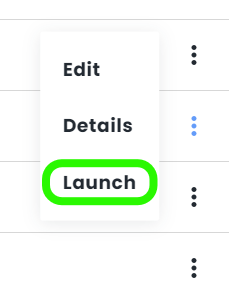
To launch the company now that it's in an "Approved" state, navigate to the "Companies" menu.
Select the 3 dots to the right of the desired company and select "Launch"
This company is now live with PayRecs and the users can log in.
Unable to access PayRecs from Online Banking?
Please ensure you have the following configurations completed:
PayRecs Entitlement is enabled in Q2
International Wire is disabled in Q2
Company is launched in PayRecs