How to Login as a Bank Admin
Last updated: March 18, 2026
Bank/Admin User
These users are considered admin users that the bank employees will utilize for administration.
Note: If your bank is new to PayRecs, we will create the first partner user and provide you with a login, if you have not received this information, reach out to our support team at support@getpayrecs.com or visit support.getpayrecs.com
Create new user
Login as a Partner/Admin user, navigate to the Users tab, and select “+ New User”.

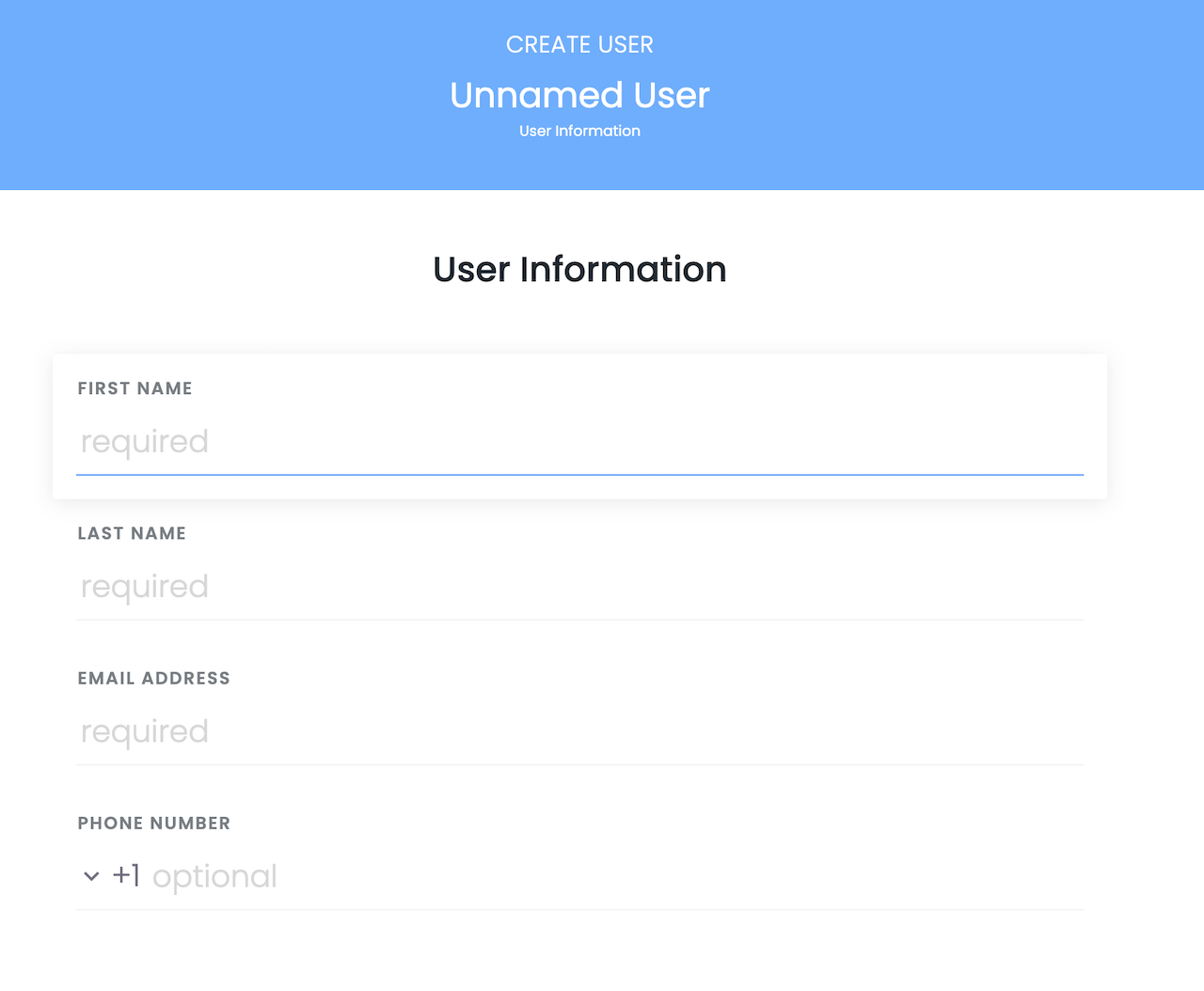
User Information
Fill in the user's correct name, email and phone number and select “Next”.
Warning:
A phone number is required for logins that require 2FA.
User Permissions
Select the desired permissions for the user and select “Next”.
Definitions of permissions:
View Partner Users - The user can view other bank staff users.
Manage Partner Users - The user can add and edit other bank staff users.
View Sub-Users - The user can view sub-end user accounts associated with customer companies
Manage Sub-User - The user can view AND edit users associated with customer companies (limits, permissions)
View Sub-Companies - The user can view the list of customer companies
Manage Sub-Companies - The user can edit customer companies' permissions and limits
Read-only Login to Sub-User Account - The user can “impersonate” sub-user access, but cannot create payments, recipients, or approve recipients/payments
Login to Sub-User Account - The user can fully "impersonate" sub-user's access to create payments, recipients, approve payments, etc.
Approve Sub-Companies - When a new sub-company is onboarded and requires approval, this administrative user can approve a launch of the sub-company
Manage Self-Approval Permissions - Allows the user to enable self approving permissions for their customer's users.
View End-User Corporate Payments - The user can view end-user corporate payments in the Payments Hub
Approve End-User Corporate Payments - The user can approve end-user corporate payments in the Payments Hub
View End-User Consumer Payments - The user can view end-user consumer payments in the Payments Hub
Approve End-User Consumer Payments - The user can approve end-user consumer payments in the Payments Hub
View Back Office Consumer Payments - The user can view back office consumer payments in the Payments Hub
Create Back Office Consumer Payments - The user can create back office consumer payments in the Payments Hub
Approve Back Office Consumer Payments - The user can approve back office consumer payments in the Payments Hub
Approve High Value Back Office Consumer Payments - The user can approve high value consumer payments in the Payments Hub
View Back Office Corporate Payments - The user can view back office corporate payments in the Payments Hub
Create Back Office Corporate Payments - The user can create back office corporate payments in the Payments Hub
Approve Back Office Corporate Payments - The user can approve back office corporate payments in the Payments Hub
Approve High Value Back Office Corporate Payments - The user can approve high value corporate payments in the Payments Hub
View Recipient Audit Log - The user can view the audit logs for all recipients
View Recipient Data/Reports - The user can view recipient data in the Data tab
View Customer Payments - Enables the "Payments Hub" menu and provides visibility on payments made by all customers that are onboarded to PayRecs.
View Back Office Payments - Enables the "Payments Hub" menu and provides visibility on payments made by the back office.
Create Back Office Payments - Allows the user to create back office payments on behalf of a customer.
Approve Back Office Payments - Allows the user to approve back office payments created by another bank admin user.
Finalize Setup
Review the summary and click "submit" to finalize user setup.