Editing User Permissions
Last updated: March 20, 2026
How to Edit Company User Permissions as a Bank Admin
Select the company in which this user is under from the "Companies" tab.
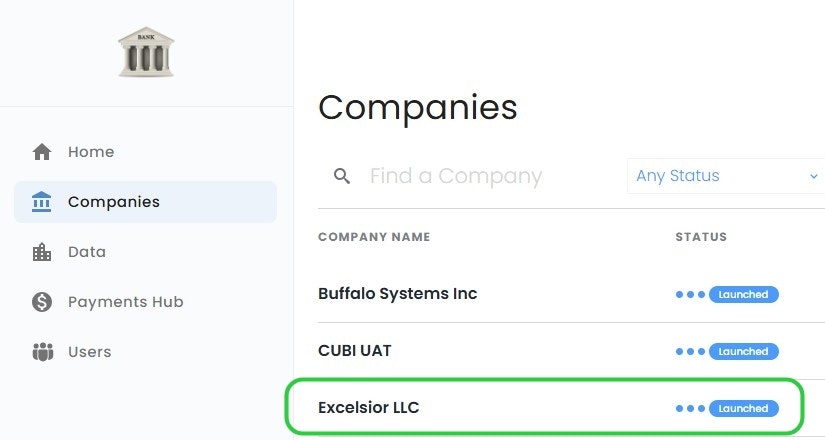
Edit User
Confirm you are under the "People" sub menu.
Hover your mouse over the 3 dots next to the user you would like to edit.
Select "Edit".
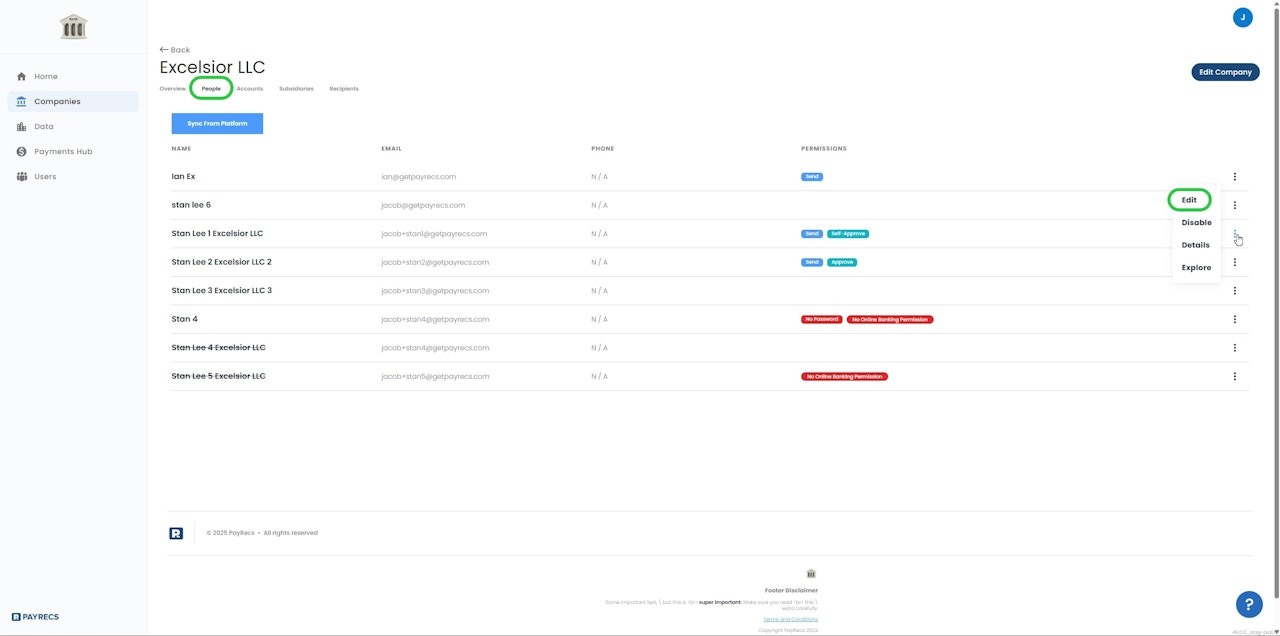
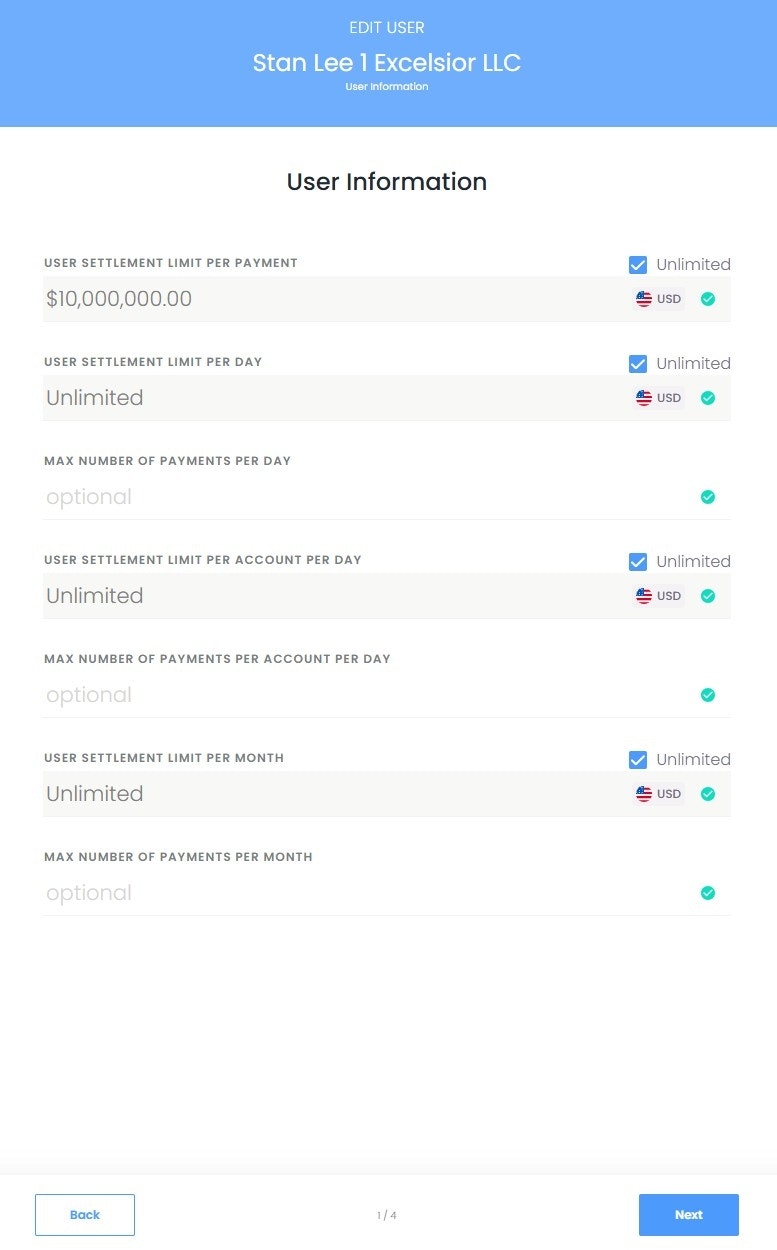
User Limits
From here, you can set the limits for this user. Selecting "Unlimited" will set the maximum that is set at the company level.
Warning:
These limits cannot exceed what is set at the company level
Account Access
This is a read only list sourced from Online banking to display the permissions for the accounts associated with the user.
View - Allows the user to view payments made from the specified account
Withdraw - Allows the user to create and approve payments made from the specified account
Tip:
If the user only has View, they will not be able to create or approve payments from the account. Withdraw is required for payment creation and approval.
User Permissions
This page will display the accounts this user has access to from their online banking platform.
Send Payment - can initiate a payment
Request Payment - No longer supported
Approve Payments - can approve or reject payments
Approve Self-Initiated Payments - Allows the user to approve their own payments(Used if only one user exists and dual payment approval is required)
Reject Payments That Incur A Loss - Allows the user to reject a payment that will result in less funds returned due to market volatility.
Create and Modify Recipients - can create and edit Recipients
Approve Recipients - can approve or reject Recipients
Approve Self-Created Recipients - Allows the user to approve recipients that they have submitted for approval(Used if only one user exists and dual approval is required for recipient creation)
Managing Users - To enable a user access to manage other user permissions, see your only banking platform permissions.
Warning:
For Q2 Partners, "Managing Users" is synced from the Q2 Central “Manage rights for all users” permission and can not be changed from PayRecs.
All online banking providers: These permissions will still need to be set from the online banking platform
Tip:
Note for Self Approval Permissions: If the checkboxes are greyed out, your admin user does not have the proper permissions to enable these permissions. "Enable Self-Approval Permissions" option below will explain how to enable this permission.
Navigate to the Bank Admin User Permissions & Definitions article to learn how to enable self-approval permissions