Send a Payment
Last updated: March 20, 2026
This page will walk you through step by step on submitting a payment.
Look at 📄 Supported Currencies to determine whether or not additional information is required to send that Currency.
Send a Payment
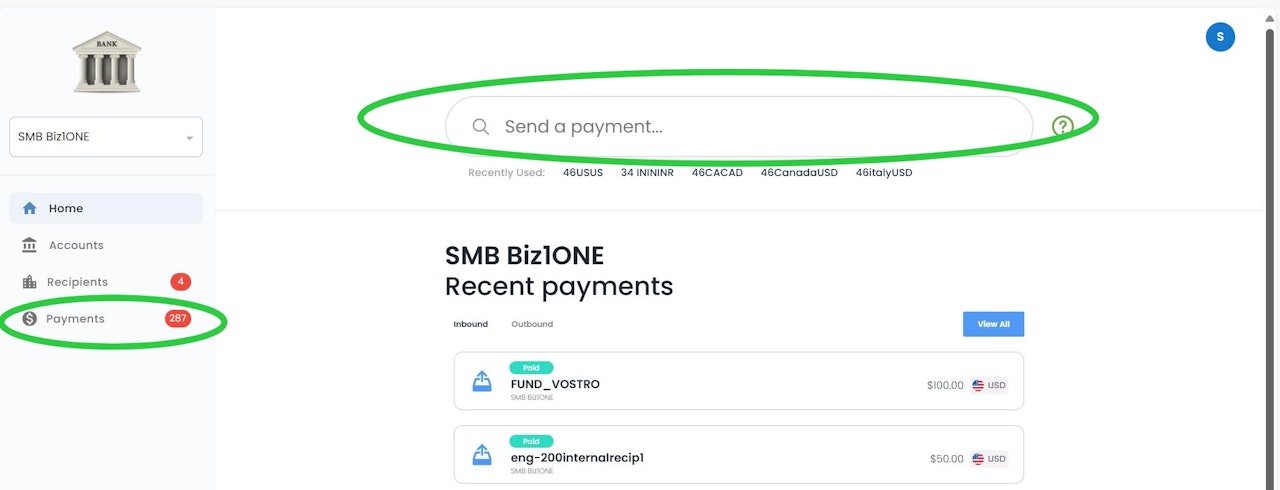
Select the "Send a Payment" button which is located at the top of any page. Or Navigate to the Payments menu and select Send Payment
Search Recipients
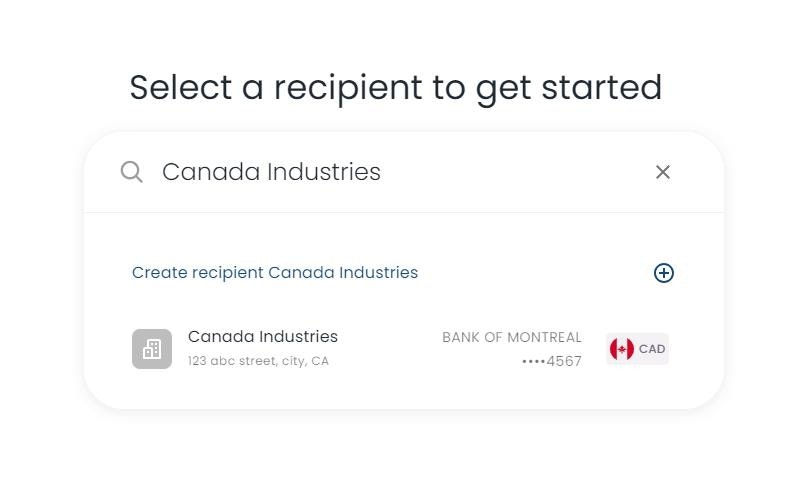
Search for the recipient using the search bar and select the recipient.
Set payment amount
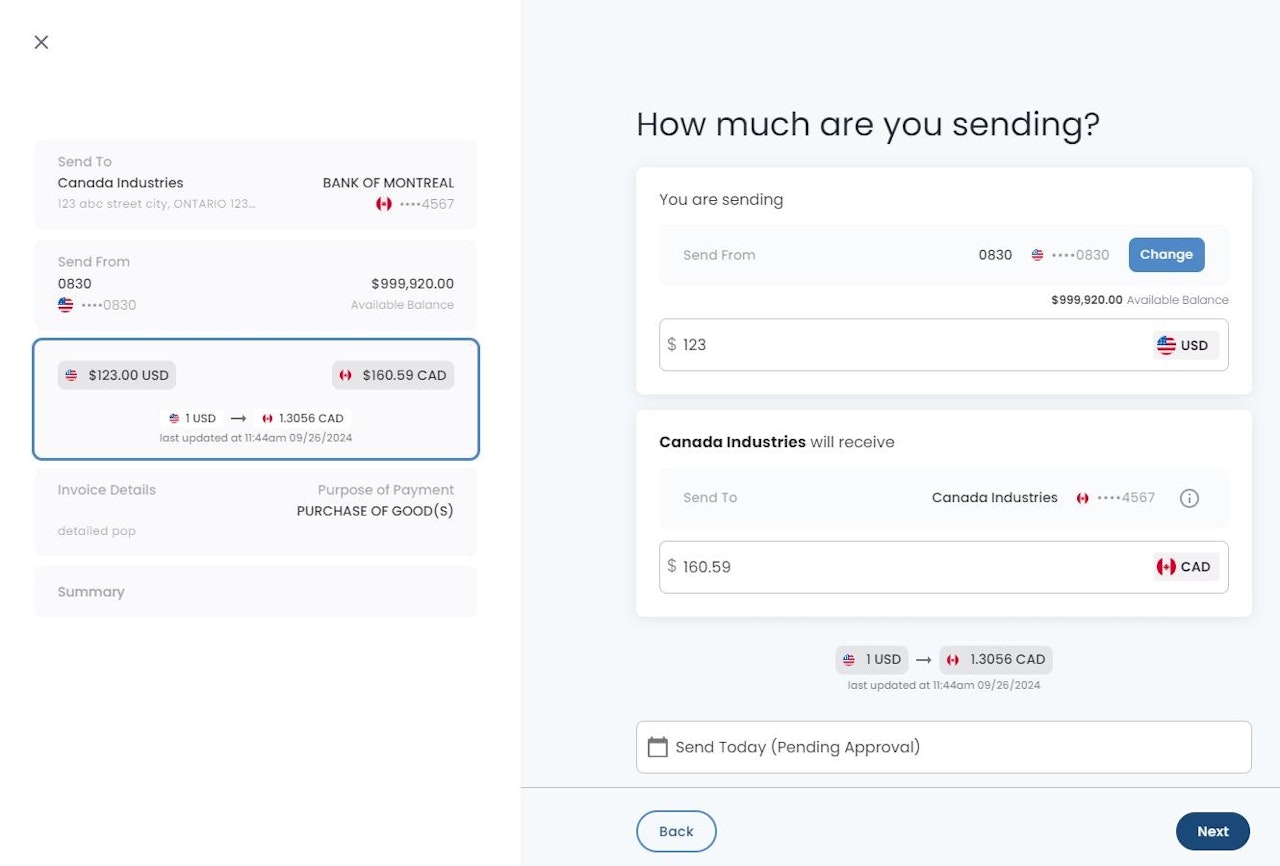
Set the amount you would like to send, or how much you would like the recipient to receive, this will be the fixed rate. The other field will auto-populate based on the current exchange rate.
Optional: Select "Change" to change your funding account where the funds will be debited.
If supported, Selecting "Send Today" will allow you to schedule the payments creation at a future date. (Payment approval will be required prior to the scheduled date, if dual approval is enabled for your company)
If same currency pair, only one field will be available.
Invoice Details
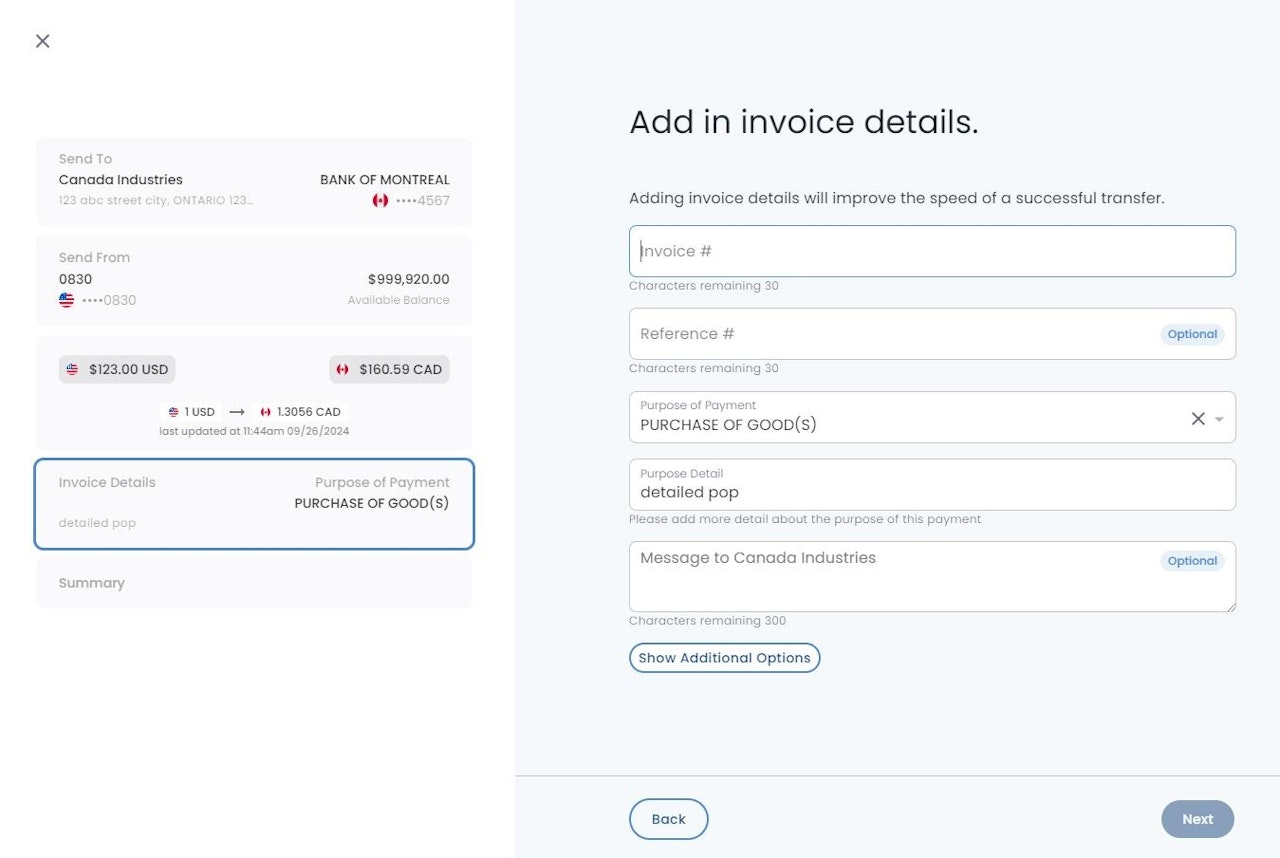
Invoice # - Fill in the invoice that you are fulfilling
Optionally you can add a Reference Number for internal accounting purposes
Purpose of Payment - Select the option that best categorizes the payment you are sending
Purpose Detail - add additional details about the payment i.e. description of the goods or services being purchased.
Show Additional Options
Attachments are restricted to 10MB file sizes and certain file types for security purposes.
Message to Internal Team Members - sends a message to any internal team members via email notifications or will display in the platform during approval.
Review/Accept Terms
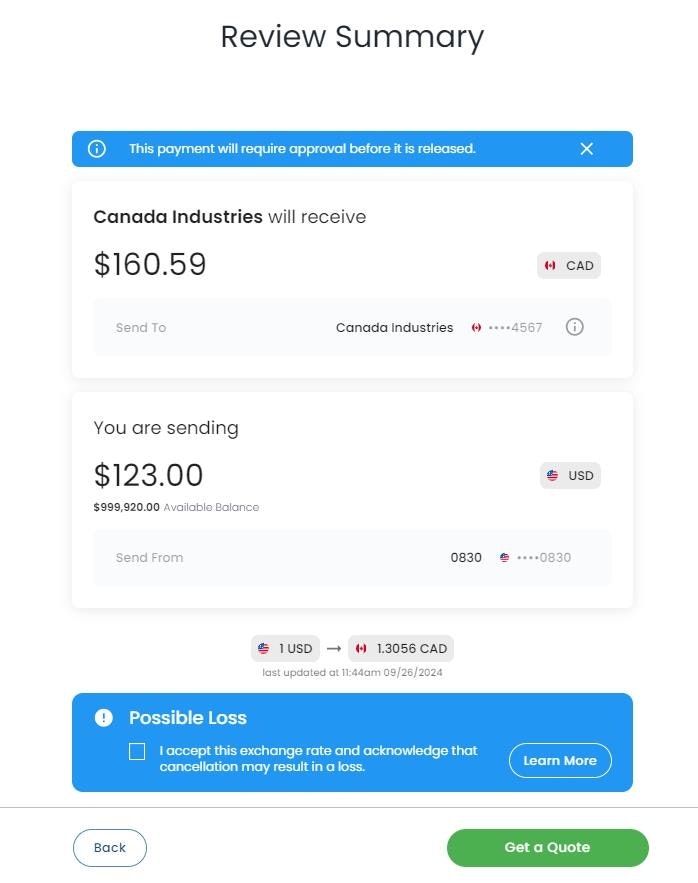
Review the summary of this payment.
If a foreign currency is being sent, please review the Possible Loss message and check the box before proceeding.
Payment Submission
Select the Pay/Get a Quote button to initiate the payment.
Input the MFA code that you receive (If applicable)
Select "Click to Confirm/Initiate" to submit your payment
Another user will need to approve the payment if dual approval is enabled for your company